Web Tools Platform 0.7 maintenance stream proposal

| WTP 0.7 maintenance stream proposal Web Tools Platform 0.7 maintenance stream proposal |
|
|
Updated 2005-08-03 |
|
| Introduction | |
|
Branch name: R0_7_maintenance |
|
|
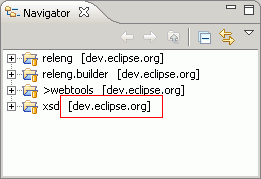
The process described in this document follows the maintenance release process used by the Eclipse platform project. This process requires us to branch all the build related project. In WTP, that would be the releng and the releng.builder project. Unlike the build projects, plug-in projects and feature projects will be branched on demand, meaning we need to branch them when a fixed is needed in the maintenance stream. |
|
|
There will not be any "HEAD" build for the maintenance stream. That means a maintenance build will always be built from the branched map files. The advantage for this approach is that we don't need to branch everything. If we want to do "HEAD" builds in the maintenance stream, then all plug-ins/features need to be branched regardless of whether changes are made to them or not. To keep things simple, let's stay away from "HEAD" builds. This means, you need to release all your changes before they would actually show up in a maintenance build. Releasing changes to the maintenance stream is the same as releasing changes to the 1.0 stream. The only difference is that you MUST release to the branched map files, not the HEAD map files. |
|
| Creating a branch for a plug-in/feature | |
|
Creating a branch for a plug-in/feature is fairly easy, here's a laundry list of what needs to be done:
|
|
|
|
|
| Checking out from a branch | |
|
To check out from a branch:
|
|
|
For changes that need to go into both the HEAD and 0.7 branch, I find that retrofitting/merging changes manually is the easiest. Since our 0.7 branch is limited to critical and NL fixes only, there shouldn't be too much work. However, if you like the Eclipse CVS tools, they do come with some merging tool that you can use. It helps you merge 0.7 branch change back into HEAD. This article talks about this tool. |
|
| Tracking 0.7 maintenance fixes in bugzilla | |
|
We now have a 1.0 M7.1 target in bugzilla. I suggest when a fix is retrofitted from the 1.0 stream to the 0.7 maintenance stream, we change the target of the corresponding bug to 1.0 M7.1. We can then create a bugzilla query to see what fixes went into the maintenance stream. |
|