
$ ./forte -d OPCUA_DEV
Deploying FBs With OPC UA
This page is part of a guide that gives a walk-through of the major 4diac IDE features.
-
Deploying Applications with OPC UA (YOU ARE HERE!)
This tutorial shows how OPC UA can be used to deploy an IEC 61499 Application. Before the OPC UA deployment can be used it is necessary to build a 4diac FORTE with the OPC UA protocol enabled. Alternatively, 4diac FBE can be used to build a FORTE with OPC UA configuration.
Deploying IEC 61499 Applications
The first step is to create an Application. For this tutorial the Blinking Application is used. After creating the Application and connecting the FBs, the following steps are required:
-
Switch to the System Configuration Editor and create the Device
FORTE_PC. The ID of the Device should be changed toopc.tcp://localhost:4840.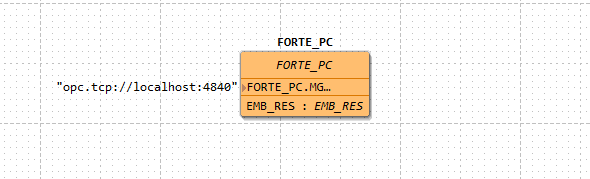
-
Change the profile of the Device to
OPC UAin the Properties tab.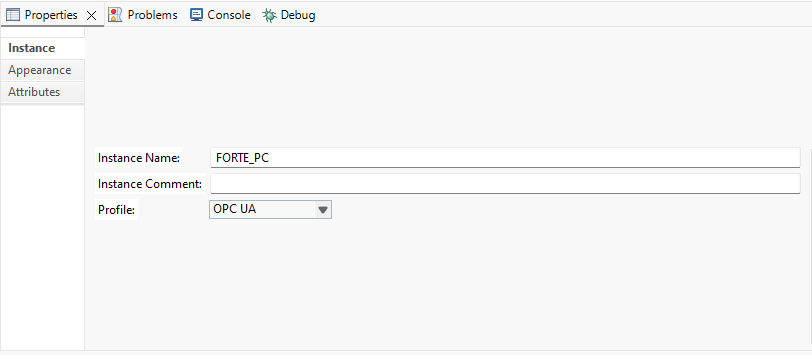
-
Map the Function Blocks to the Device.

-
Now the Application is set to be deployed with OPC UA. Because of the ID of the Device, it will try to connect to the OPC UA server as specified and deploy the Application to 4diac FORTE. Therefore, the OPC UA server already needs to be active on FORTE startup. This is done by starting 4diac FORTE with the flag
-d OPCUA_DEV.Linux
Windows
$ .\forte.exe -d OPCUA_DEV
-
The output of 4diac FORTE console should look similar to this, if Logging is enabled in the FORTE configuration.
INFO: T#1766345564208163065: Using provided bootfile location set in CMake: forte.fboot
INFO: T#1766345564208221584: Boot file forte.fboot could not be opened. Skipping...
INFO: T#1766345564208244430: CBSDSocketInterface: Opening TCP-Server connection at: localhost:61499
INFO: T#1766345564208302084: [OPC UA LOCAL]: Starting OPC UA Server: opc.tcp://localhost:4840
[2025-12-21 20:32:44.208 (UTC+0100)] info/eventloop     Starting the EventLoop
[2025-12-21 20:32:44.208 (UTC+0100)] warn/server        AccessControl: Unconfigured AccessControl. Users have all permissions.
[2025-12-21 20:32:44.208 (UTC+0100)] info/server        AccessControl: Anonymous login is enabled
[2025-12-21 20:32:44.208 (UTC+0100)] warn/server        x509 Certificate Authentication configured, but no encrypting SecurityPolicy. This can leak credentials on the network.
[2025-12-21 20:32:44.210 (UTC+0100)] info/session       TCP 0   | SC 0  | Session "Administrator"       | AddNode (i=15303): No TypeDefinition. Use the default TypeDefinition for the Variable/Object
[2025-12-21 20:32:44.212 (UTC+0100)] info/session       TCP 0   | SC 0  | Session "Administrator"       | AddNode (i=25451): No TypeDefinition. Use the default TypeDefinition for the Variable/Object
INFO: T#1766345564220032810: [OPC UA LOGGER] info/network       TCP     | Listening on all interfaces
-
Deploy the Application to 4diac FORTE. The console will display the connection from the OPC UA client in 4diac IDE.
-
The Application can now be monitored, Events can be triggered, and values can be set.
Exporting Custom FBs
Exporting custom FBs works the same way as with the regular deployment profile. A tutorial can be found here. A description of building custom modules can be found on the build a 4diac FORTE page, or in the 4diac FBE description, depending on the used setup.
Where to go from here?
-
If you want to go back and see again how to deploy new FBs with the Dynamic Type Loader, here is a link
Dynamic Type Loader -
If you want to go back to the Start Here page, we leave you here a fast access:
Where to Start